Set up inbound email: DNS and your domain
DeskCrew turns incoming email into tickets through a Mailgun-signed webhook. Set this up by adding an inbound subdomain in Mailgun, creating the DNS records, and pointing a Mailgun route at DeskCrew.
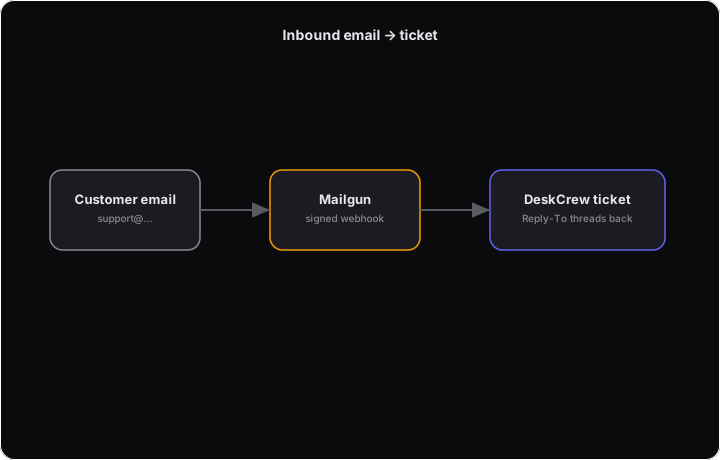
1. Add your inbound subdomain
- Pick an inbound subdomain, for example
mg.deskcrew.ioormg.yourbrand.com. - Add it as a Mailgun domain.
- Create the DNS records Mailgun gives you:
- The MX records that point mail at Mailgun.
- The SPF and DKIM (TXT) records that authenticate your sending, so customer notifications land in the inbox and come from your brand.
2. Add a Mailgun route
In Mailgun, add a Route that forwards inbound messages to:
https://deskcrew.io/api/inbound/email
3. Set your environment variables
DeskCrew verifies the Mailgun HMAC signature on every POST and rejects anything unsigned, so set:
MAILGUN_SIGNING_KEYINBOUND_EMAIL_DOMAIN— the subdomain you configured.
How threading works
- New mail to
<your-slug>@<your-domain>opens a fresh ticket and creates the customer from the sender. - Replies thread back automatically: DeskCrew sets a
Reply-Toofsupport+<token>@<your-domain>, and that signed token routes the reply onto the exact ticket and reopens it if it was closed.