
Connecting inbound email to tickets
Forward any email address at your domain to your DeskCrew workspace and every message becomes a ticket. With the whole back-and-forth threaded on one ticket automatically.
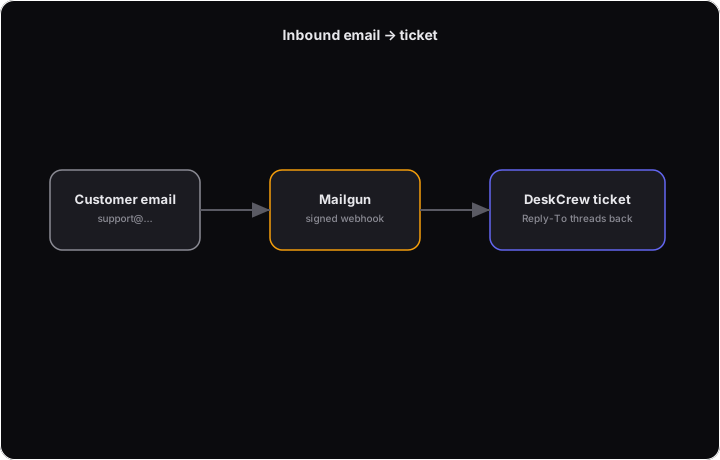
How it works
- You forward an address (say support@yourdomain.com) to your workspace's inbox address. Copy it from Dashboard → Install, under "Turn your support email into tickets." It looks like
yourhandle@inbox.deskcrew.io. See "Receive support email at your own address" for the five-minute walkthrough. - Each incoming email opens a ticket and creates the customer from the sender.
- You reply from the ticket; the customer receives a branded email from your workspace.
- If they reply, it lands back on the same ticket. Even weeks later, even if the ticket was closed (it reopens).
There's no mailbox to manage and your existing email setup stays exactly as it is.
Always copy your inbox address from the Install page rather than typing it out from an article. That page shows your real address and is always current; an address written into a guide can go stale.
Good to know
- Forward as many addresses as you like (help@, contact@, billing@). They all feed the same queue.
- Auto-replies, bounces and mailing-list mail are filtered out so your queue stays clean.
- With the AI assistant enabled, every inbound email gets a suggested draft in your approval queue. A teammate approves before anything sends.
- On the Pro plan and above, you can also send replies from your own domain: Dashboard → Install → "Send from your own domain".
- Renaming your board URL does not affect email forwarding. Your inbox address is separate from your board link and does not change when the board does.